Have you ever saved a post on LinkedIn, intending to revisit it later, only to find yourself struggling to locate it amidst the myriad of features and updates? You're not alone. It's essential to know how to efficiently access your saved posts to make the most of LinkedIn's vast resources for career development and networking. While the initial steps might seem straightforward—clicking on your profile icon and selecting "Saved items"—there's more to managing and optimizing your saved content than meets the eye. Let's explore how you can streamline this process and why it's crucial for your professional growth.
What Are Saved Posts?
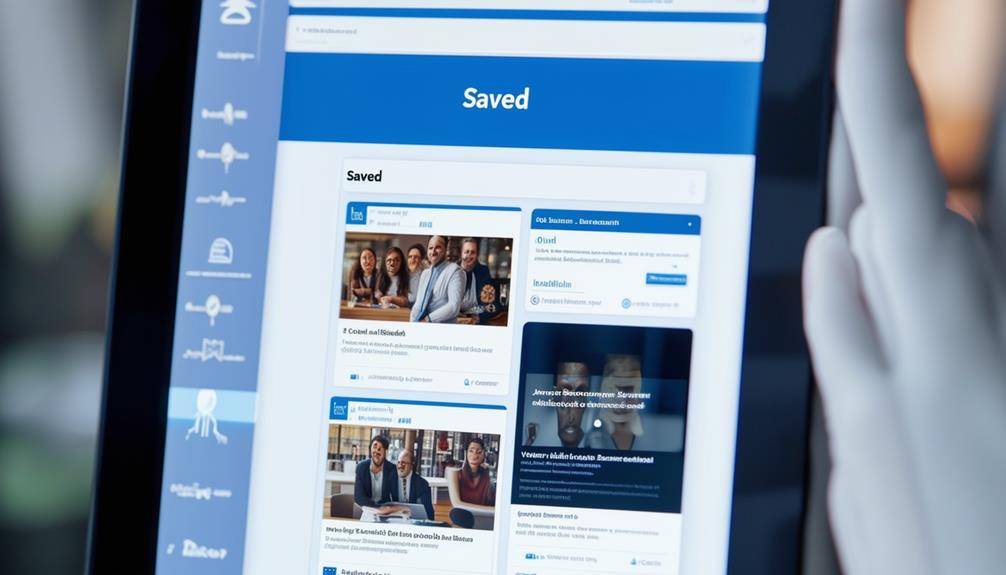
Saved posts on LinkedIn are a collection of articles, updates, and videos that you've elected to store for future reference. Whenever you come across content that resonates with your professional needs or sparks your interest, you can save it to revisit later. This feature helps you manage the information overload that often accompanies frequent use of the platform.
You might wonder why you'd save posts on LinkedIn. It's simple: to keep valuable insights at your fingertips. Whether it's an inspiring leadership article, a tech innovation update, or a career advice video, saving these posts ensures you don't lose track of them amidst the daily flood of new content.
This is particularly useful when you're not ready to engage with the content immediately but recognize its potential value for your career development or business strategy.
Related: Utilizing LinkedIn Saved Posts for Business Forecasting Insi
Moreover, think of saved posts as your personal knowledge library. It's a curated collection that reflects your professional interests and ongoing learning endeavors. Over time, this repository becomes a tailored resource that supports your professional growth, networking efforts, and industry engagement, all accessible from your LinkedIn profile.
Navigating to Your Saved Posts
To access your saved posts on LinkedIn, start by logging into your account. Once you're in, look for your profile icon on the top navigation bar. Click on it and a dropdown menu will appear. Here, you'll find the "Saved items" option nestled among other features. It's usually located towards the middle or bottom of the list, so you might need to scroll down a bit to find it.
Clicking on "Saved items" will redirect you to a new page where all your saved posts are neatly organized. These posts are displayed in a list format, making it easy to browse through everything you've decided to save over time.
Related: 7 Tips to Locate Your Saved Posts on LinkedIn
The layout is intuitive, with each post showing a preview that includes the headline and a snippet of the content, as well as the date when it was saved.
Managing Your Saved Content
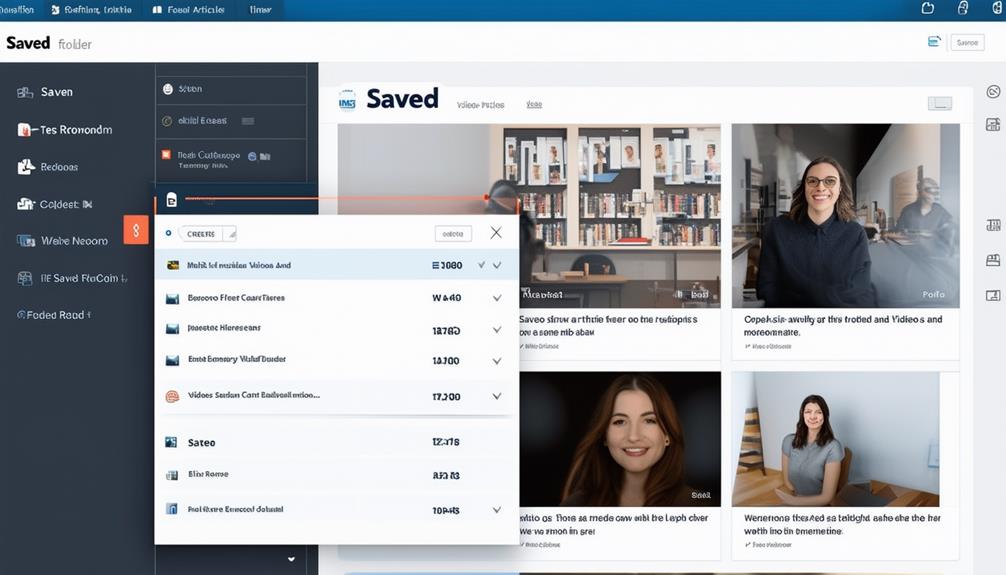
Once you've located your saved items on LinkedIn, you might wonder how best to organize and manage them. Here's how you can keep your saved content tidy and accessible.
First, consider categorizing your saved items based on themes or objectives. For instance, you might've categories like "Career Development," "Industry News," or "Innovative Ideas." This way, you'll find it easier to retrieve posts when you need them for specific purposes.
To categorize, simply click on a saved post and look for an option to 'Add to Collection' or create a new category label if it's your first time organizing. Remember, these categories are flexible; you can always edit or merge them as your interests or goals evolve.
Additionally, regularly review your saved items to remove those that are no longer relevant. This not only frees up space but also ensures that your collections remain valuable and up-to-date. To delete a post, click on the option beside the post and select 'Remove from Saved.'
Benefits of Organizing Saved Posts
Organizing your saved posts on LinkedIn can dramatically boost your productivity and efficiency. When you sort your content into categories, you're able to quickly locate valuable resources and references without wasting time scrolling through an endless feed. It's like having a well-filed digital cabinet where everything is at your fingertips. This organization not only saves you time but also ensures that you make the most of the information you've collected.
Moreover, by keeping a tidy list of saved posts, you can easily share relevant content with colleagues or connections who might benefit from it. This not only strengthens your professional relationships but also enhances your reputation as a knowledgeable and resourceful contact. You'll find that being organized helps in building a personal brand that others see as thoughtful and well-informed.
Additionally, regular review of your saved posts allows you to reflect on trends, insights, and emerging topics in your industry. This ongoing learning process keeps you sharp and up-to-date, providing a competitive edge in your professional life. Overall, the strategic organization of your LinkedIn saves isn't just about cleanliness; it's about maximizing your professional potential.
Troubleshooting Common Issues
While accessing your saved posts on LinkedIn is generally straightforward, you might occasionally encounter some issues. If you can't find a previously saved post, it's possible that the original content was deleted by the user or made private. In such cases, the post won't appear in your saved items anymore.
If your saved posts aren't loading, check your internet connection first. A weak or unstable connection can hinder the loading process. Also, try refreshing the page or closing and reopening your browser. If the problem persists, clear your browser's cache and cookies, as accumulated data can sometimes cause performance issues.
Another common issue isn't seeing the "Save" option on posts. This could be due to a temporary glitch in LinkedIn's interface. Logging out and then back into your account might resolve this hiccup. Additionally, ensure your app or browser is updated to the latest version, as updates often include bug fixes that resolve display and functionality problems.
If you've followed these steps and still face issues, LinkedIn's Help Center provides more detailed guidance, or you can reach out to their support team for assistance. Remember, keeping your browser or app updated is crucial for a smooth LinkedIn experience.
Conclusion
Now you know how to access and manage your saved posts on LinkedIn like a pro! By organizing your saved content, you'll keep key insights at your fingertips, making it easier to learn and network effectively. If you run into any issues, remember the troubleshooting tips we covered. Don't let valuable resources slip through the cracks; make the most of your saved posts and continue to enhance your professional journey. Stay organized and connected!
Related reading: How to Find Your LinkedIn Saved Posts: 5 Quick Steps · How I Saved 14 Hours Weekly on LinkedIn Networking · How to Find Archived Chats: 2026 Guide