Linkedin Daily

Tag: Networking

  • LinkedIn Sales Navigator vs HubSpot 2026 Guide

    LinkedIn Sales Navigator vs HubSpot 2026 Guide

    LinkedIn Sales Navigator vs. HubSpot: Which CRM Tool Is Better for LinkedIn Prospecting?

    Sales professionals and revenue teams often face a decision point when building their prospecting tech stack: should they invest in LinkedIn Sales Navigator, HubSpot, or both? The confusion is understandable. Both platforms integrate with LinkedIn, both support outbound prospecting sequences, and both claim to streamline B2B sales workflows. However, they solve different problems in the sales funnel, and treating them as direct competitors misses a crucial insight: they are complementary tools, not replacements for one another.

    Read more: LinkedIn guest post opportunities

    This comparison cuts through the noise by examining what each platform actually does, where their capabilities overlap, and most importantly, how they work together as part of a complete B2B prospecting strategy. Whether you are a sales development representative (SDR), account executive, or revenue operations leader evaluating tools, understanding these distinctions will help you allocate budget effectively and avoid costly implementation mistakes.

    What Each Tool Does

    LinkedIn Sales Navigator is a paid premium version of LinkedIn designed specifically for sales professionals. It functions as an intelligence and prospecting engine built directly into the LinkedIn ecosystem. Sales Nav excels at finding net-new prospects, tracking profile changes, and enabling direct outreach through LinkedIn’s native messaging channels.

    Read more: digital marketing guest posts

    HubSpot is a full-featured customer relationship management (CRM) platform with integrated marketing automation, email sequences, contact management, and reporting. While HubSpot has LinkedIn integrations and can track LinkedIn activity, it is fundamentally a pipeline management tool designed to manage deals across multiple stages and multiple communication channels.

    Where They Overlap

    Both platforms can track LinkedIn activity on prospects and customers. Both support outbound email and messaging sequences. Both allow you to log activities and notes against contacts. Both integrate with calendar and email systems. This overlap creates the confusion, but it is surface-level. The depth and purpose differ significantly.

    Read more: B2B marketing guest posts

    • Activity logging and CRM records – both do this, but HubSpot’s is more comprehensive across channels
    • Outbound sequences – both support them, but HubSpot offers multi-channel sequences while Sales Nav is LinkedIn-focused
    • linkedin profile and activity tracking – both monitor this, but Sales Nav provides real-time alerts on job changes and profile updates
    • Contact database building – both allow it, but Sales Nav specializes in LinkedIn-sourced contacts

    Where Sales Navigator Wins

    LinkedIn Sales Navigator is the superior choice for the top-of-funnel prospecting phase. Here is where it delivers unique, irreplaceable value:

    • Finding net-new prospects at scale: Sales Nav’s advanced search filters (by company size, industry, title, seniority, location, skills) are purpose-built for identifying qualified prospects. HubSpot has no equivalent search capability.
    • Job change alerts: Real-time notifications when prospects change jobs, join new companies, or receive promotions. This is a core Sales Nav feature with no HubSpot equivalent.
    • InMail and LinkedIn messaging: Direct messaging through LinkedIn with higher open rates than Cold Email. Sales Nav makes this a workflow centerpiece; HubSpot does not natively support InMail.
    • Account research and intelligence: Detailed company and person insights, organizational charts, and hiring signals directly within the Sales Nav interface.
    • Warm introductions: Connection requests and profile-based research help you personalize outreach before any contact is made.
    • Lead recommendations: AI-powered prospect suggestions based on your saved accounts and past activity.

    Where HubSpot Wins

    HubSpot dominates the middle and back end of the sales funnel. Once a prospect is identified and added to your pipeline, HubSpot becomes the operational backbone:

    • Full pipeline visibility: Kanban boards, deal stages, and forecasting dashboards that span the entire sales cycle, not just LinkedIn outreach.
    • Multi-channel email sequences: Sophisticated automation that moves contacts through sequences based on behavior, engagement, and stage-not limited to LinkedIn.
    • Centralized contact database: Single source of truth for all contacts, companies, interactions, and history across all channels and touchpoints.
    • Multi-channel attribution: Track which channels, campaigns, and touchpoints drive closed deals. Sales Nav provides no Attribution Modeling.
    • Reporting and analytics: Customizable dashboards, pipeline reports, and conversion metrics that inform strategy across the entire revenue team.
    • Integration ecosystem: Connects with hundreds of tools (Slack, Calendly, Zapier, etc.) to orchestrate workflows beyond sales prospecting.
    • Document

      Are you a marketing professional with insights to share? LinkedIn Daily accepts marketing Guest Posts from practitioners across the industry.

      Related reading: Is LinkedIn Premium Worth It in 2026? 4 B2B Experts Share Their Real ROI | Can Linkedin Premium Be Shared?

  • I’ve Mastered LinkedIn Networking: Here’s How I Built Real Connections in 2026

    I’ve Mastered LinkedIn Networking: Here’s How I Built Real Connections in 2026

    “`html

    LinkedIn users with 5,000 connections but zero engagement generate less opportunity than professionals maintaining 400 actively-engaged contacts—a 3x performance gap that most networkers ignore.

    Read more: LinkedIn guest post opportunities

    Why Connection Count Deceives You

    The numbers game on LinkedIn creates an illusion of network strength. A user hitting 500 connections celebrates a milestone that translates to minimal business value. LinkedIn’s algorithm suppresses content distribution to inactive relationships, meaning your posts never reach dormant connections. Cold outreach to distant contacts gets a 2-3% response rate without prior interaction history.

    Research on professional outcomes shows the difference clearly: professionals with 200-400 warm connections generate 3x more job offers, consulting leads, and partnership opportunities than those with 5,000+ inactive ones. Quality networks require maintenance, but that maintenance creates compounding returns. Each active connection who engages with your content increases your visibility to their network, expanding your reach without additional effort.

    Read more: social media guest posts

    The distinction matters operationally because network size directly correlates with relationship debt. Managing 5,000 connections while expecting genuine reciprocity becomes impossible. Focusing instead on building recognition—where connections see your name, interact with your posts, and would realistically help you—shifts networking from collection to cultivation.

    Target These Five Connection Categories First

    Strategic networking means ranking prospects by likelihood of mutual value. These categories represent the highest-ROI connection opportunities:

    Read more: technology guest posts

    • Second-degree connections in your target industry or role: People one connection away operate in your ecosystem and have mutual connections for warm introductions. These represent 60% of your most valuable opportunities and come pre-qualified by proximity.
    • People actively engaging with your content: If someone has liked or commented on three of your posts, they recognize your name and care about your perspective. These connections accept requests at 40%+ rates and often become collaborators or referral sources.
    • Alumni from your school or previous employers: Institutional affinity accelerates relationships. Alumni engage with you 4x more frequently and respond to asks at significantly higher rates than random professionals.
    • Conference and event attendees: People you met in person (or attended the same virtual event) are warm prospects. Connect within 48 hours while context remains fresh in their memory.
    • Podcast guests and hosts in your niche: These individuals have invested in content creation around your industry and actively grow their networks. They bring visibility through established platforms and audiences.

    A B2B SaaS marketer should prioritize content marketers at mid-market software companies, people engaging with their thought leadership posts, alumni from their university, and marketing leaders who spoke at attended conferences. Not a random Fortune 500 executive they’ll never interact with. This specificity eliminates wasted outreach and concentrates effort where reciprocity actually exists.

    Write Connection Requests That Get Accepted

    Generic connection requests feel like spam and get ignored. Personalized requests get accepted 5x more often because they demonstrate investment in the other person. Use this formula: specific context about how you found them plus one concrete reason to connect, with no transactional ask attached.

    Example: “Hi Sarah—I saw your presentation on revenue operations at the Sales Hacker Summit last month and your framework for aligning sales and marketing operations directly applies to what we’re building. Would love to connect and stay updated on your work.”

    This works because it includes specific context (event name and timing), genuine reason (actual framework relevance), and no extraction ask. It shows you invested time understanding their work.

    Avoid these acceptance-killers:

    • “Let’s connect and stay in touch”—meaningless and signals no prior research
    • “Would love to pick your brain”—implies one-way value extraction
    • Immediate asks like “Could you introduce me to…”—signals you’re collecting connections as stepping stones
    • Generic flattery like “You’re a thought leader”—they receive this 20 times per week

    The Follow-Up Sequence That Warms Cold Connections

    Connection acceptance is only the beginning. Most professionals accept a connection and do nothing, missing the entire opportunity window. Structure your follow-up across three touchpoints.

    Day 1 (within 24 hours of acceptance): Send a thoughtful message referencing your connection request context. Ask a low-friction question about their current work. Example: “Sarah—thanks for connecting. I’m curious about the revenue ops framework you presented at Sales Hacker. Are you implementing it across your entire go-to-market team, or testing it with specific departments first?” This keeps the conversation specific to something they actually care about.

    Week 2 (if they engaged): Share something relevant to their work—an article, a case study, or an observation from your own experience. Don’t ask for anything. Example: “Ran into this breakdown of revenue operations tools that might apply to your framework at [Company]. The integration challenge you mentioned in your presentation seems to be the sticking point for most teams we talk to.” This positions you as a resource, not a person asking for favors.

    Week 4 (if engagement continues): Only then, if conversation has been consistent, suggest a specific conversation. Not a vague “let’s grab coffee” but something concrete: “I’m hosting a small virtual roundtable on sales-marketing alignment next month with three other ops leaders from Series B companies. Would you be interested in joining?” This gives them a clear reason to say yes or no.

    The entire sequence operates on reciprocity. You provide value first through specific, relevant engagement. The ask—if one comes—arrives only after establishing mutual interest. Most professionals skip this sequence entirely and wonder why cold asks fail.

    Build a System That Keeps Relationships Active

    Active networks deteriorate without maintenance. Create a simple tracking system to remind yourself when to engage with key connections. Use a spreadsheet or simple CRM to categorize contacts into tiers: A-tier (people you want regular contact with), B-tier (connections worth staying visible to), and C-tier (peripheral relationships).

    For A-tier connections, set a reminder every 4-6 weeks to engage with their content or send a relevant resource. For B-tier, quarterly touchpoints suffice. This prevents relationships from decaying while remaining manageable at scale. A professional managing 350 active connections might spend 90 minutes per week on relationship maintenance—less time than most spend on social media.

    LinkedIn’s native tools help. Use the “Follow” feature on profiles of people you want to track. Set notifications for when key connections post content. Comment within the first hour of their posts—early comments get more visibility and signal you’re actively tracking their work.

    The goal is simple: shift from invisible in their feed to consistently visible. Consistency over time transforms you from a distant connection to someone they think of when opportunities emerge in your area of expertise.

    If you’ve built a networking system that generated measurable results, consider sharing your approach with LinkedIn Daily’s community. We’re looking for practitioners with real networking outcomes to contribute to our write-for-us page. Contact our editorial team with your pitch.

    Start this week by identifying 10 people in your second-degree network who work in your target industry or role. Spend two hours researching their recent activity and writing personalized connection requests. Expect 60-70% acceptance rates if you follow the formula. That’s your foundation.

    “`

  • InMail vs Connection Requests: Which Converts Better in 2026

    InMail vs Connection Requests: Which Converts Better in 2026

    LinkedIn InMail vs. Connection Request: Which Gets More Replies?

    LinkedIn offers two primary methods for reaching out to prospects you don’t already know: InMail and connection requests with a personalized note. Both serve as entry points into conversations, but they operate under fundamentally different mechanics, costs, and psychology. For B2B sales professionals and business development teams, understanding which tool delivers better results for specific scenarios is crucial to maximizing outreach efficiency and ROI.

    The choice between InMail and connection requests isn’t binary – it’s strategic. Your decision should depend on your target audience, budget constraints, message complexity, and relationship history. This article breaks down the data, costs, and tactical considerations to help you allocate resources where they’ll generate the highest response rates. For more, see I Spent $2M on LinkedIn.

    Response Rates: The Core Performance Metrics

    The numbers tell different stories depending on how you measure success:

    • InMail response rates: 10-25% depending on personalization and sender credibility
    • Connection request acceptance rates: 15-35% (higher than InMail replies, but different metric)
    • Connection request-to-reply conversion: 5-15% after acceptance (actual meaningful responses)

    Here’s the critical distinction: InMail measures direct replies to your initial message. Connection requests measure acceptance of your network invitation, not engagement with your note. Many professionals accept connection requests but never read the accompanying message. This creates a false equivalence between the two metrics.

    When measuring true outreach success – getting a prospect to engage substantively – InMail typically outperforms connection requests. However, connection requests win on volume and long-term relationship building since accepted connections remain in your network for future outreach.

    Cost Comparison: Free vs. Credit-Based

    The financial model differs dramatically:

    • Connection requests: Completely free, unlimited monthly
    • InMail: Requires LinkedIn Sales Navigator subscription ($99-165/month) or recruiter lite ($$$), plus individual credits for premium inmail features
    • Practical cost per outreach: Connection request = $0; InMail = $2-5 per message when amortized across subscription costs

    For early-stage startups or bootstrapped teams, this cost difference is prohibitive. Free connection requests allow unlimited prospecting. However, if your conversion value justifies the investment, InMail’s higher response rate can deliver positive ROI at scale.

    character limits: Space for Your Value Proposition

    Message length directly impacts your ability to explain complex Value Propositions:

    • Connection request note: 200 characters maximum (roughly one brief paragraph)
    • InMail subject line: 200 characters
    • InMail body: 1,900 characters (approximately 300-350 words)

    The connection request’s 200-character limit forces extreme brevity. You have room for a personalization detail, a quick value statement, and a call-to-action – but nothing more. InMail’s expanded format allows you to tell a story, address specific pain points, and provide context that justifies the prospect’s time investment.

    InMail Wins: When to Use This Premium Channel

    InMail delivers superior results in these specific scenarios:

    • Senior executive targeting: C-suite and VP-level prospects who receive high connection request volume and screen aggressively
    • Complex solution explanations: When your Value Proposition requires 2-3 paragraphs to articulate clearly
    • Cold outreach to competitors’ employees: These prospects expect and respect formal InMail communication
    • Situations requiring credibility signals: When your company, Social Proof, or unique angle needs space to register
    • High-value deals: When deal size justifies $2-5 per outreach and 10-25% response rates remain profitable

    Connection Requests Win: When to Use This Free Alternative

    Connection requests with personalized notes outperform InMail in these contexts:

    • Warm prospects: When you have mutual connections, shared group membership, or other relationship indicators
    • Mid-market and junior-level targeting: Managers and individual contributors who accept most legitimate connection requests
    • Follow-up prospecting: When your goal is network building first, with sales conversations happening over time
    • High-volume campaigns: When

      Are you a marketing professional with insights to share? LinkedIn Daily accepts marketing guest posts from practitioners across the industry.

      Related reading: LinkedIn Sponsored Content vs Message Ads: Which Converts Better? · LinkedIn Connection Request Message Templates That Get Accepted in 2026 · LinkedIn Connection Request Message Templates That Actually Get Accepted

  • LinkedIn Connection Request Templates That Actually Get Accepted (2026)

    LinkedIn Connection Request Templates That Actually Get Accepted (2026)

    “`html

    LinkedIn users who personalize connection requests see acceptance rates between 40% and 60%, compared to 10-15% for generic “Let’s connect” messages.

    Read more: LinkedIn guest post opportunities

    Most professionals sabotage their own networking by treating the connection request note as an afterthought. A hiring manager, potential client, or industry peer receives dozens of requests weekly. The ones that stand out aren’t clever or funny—they’re specific. They reference something concrete about the recipient or explain a clear reason for connecting. In 2026, when decision-makers filter ruthlessly for signal over noise, a thoughtful message separates you from the 85% of requesters who send templated garbage.

    The gap isn’t between people who want bigger networks and those who don’t. It’s between people who write connection requests as if they matter and people who don’t. This article provides seven templates for different scenarios, each with specific examples and the psychology behind why it works.

    Read more: social media guest posts

    Related: LinkedIn Connection Request Message Templates That Get Accep

    The Event Meeting Template

    “Great connecting at [Event Name]! Enjoyed our conversation about [specific topic]. Would love to stay in touch and explore how we might collaborate.”

    This works because it triggers immediate recognition. If you actually met someone at a conference or meetup, they remember you—but only if you prove you were paying attention. Specificity about your conversation distinguishes you from people who work a room and mass-message everyone they met.

    Read more: technology guest posts

    The word “collaborate” matters here. It implies mutual value rather than positioning yourself as the taker. It suggests you’re thinking about how you might both benefit, not just extracting information or asking for something.

    Personalization specifics:

    • Name the actual venue: “the B2B SaaS Summit in Denver” beats “a recent conference”
    • Reference a memorable detail from your conversation, not just the general topic. Instead of “enjoyed discussing AI,” try “your point about AI hallucinations in customer service workflows” or “when you mentioned how your team handles AI training on proprietary data”
    • If you discussed something concrete—a specific challenge, a tool they mentioned, a company they’re working with—reference that detail

    The Mutual Connection Referral Template

    “[Name] recommended I connect with you. We’re both focused on [shared, specific interest], and I’d love to learn more about your work in [their expertise]. Happy to help where I can.”

    The mutual connection acts as a trust bridge. This template works because it provides social proof (someone they trust vouches for you), identifies common ground beyond job titles, and frames the relationship as potentially bidirectional rather than purely transactional.

    The phrase “happy to help” positions you as a resource, not someone asking for favors. It opens the door for them to think about what you might offer, rather than only thinking about what you want.

    Personalization specifics:

    • Always ask the mutual connection’s permission before using their name. A quick message—”Would you mind if I mentioned you when I reach out to Sarah about B2B revenue operations?”—takes 30 seconds and prevents awkwardness
    • Be specific about shared interests. “We’re both in marketing” is useless. “We both work on product-led growth strategies for developer tools” or “we’ve both implemented Salesforce at fast-growing Series B companies” shows you’ve done homework
    • Reference something the person has actually accomplished or written about, not just their job title

    The Content Engagement Template

    “Your post on [topic] really landed for me—especially your point about [specific element]. Would like to continue the conversation. Sending a connection request!”

    This template works because it proves you engage with their actual ideas, not just their headline or credential. It demonstrates active interest in how they think. The phrase “continue this conversation” frames connection as the start of dialogue, not a one-time transactional ask.

    The difference between this and lazy commenting matters: “Great insight!” loses to “This resonates especially because remote-first teams often miss the context-setting that office environments provided naturally—have you seen that play out at your company?”

    Personalization specifics:

    • Reference a post from the last 1-3 weeks, ideally something with under 500 likes or comments. You’ll stand out more than as comment #7,000 on a viral post about LinkedIn strategy
    • Don’t just compliment their take. Add your own perspective or a relevant example. Instead of “this is so true,” try “I’d add that we’ve seen this especially with distributed teams where asynchronous communication becomes critical”
    • If the post discusses a problem, suggest your angle on a solution without pitching

    The Industry-Specific Template

    “Noticed we’re both working in [specific niche], focusing on [particular angle]. I’m always interested in connecting with thoughtful practitioners in this space. Would love to stay in touch.”

    This template appeals to professional identity. People want to connect with others who understand their specific corner of an industry. It works because it acknowledges shared expertise and positions you as someone serious about your craft, not another salesperson working through a list.

    The phrase “thoughtful practitioners” carries weight. It signals you’re looking to learn and exchange ideas with people who care about doing things well, not just moving deals.

    Personalization specifics:

    • Go deeper than broad industry categories. Instead of “fintech,” say “embedded finance for SMB marketplaces” or “open banking APIs for independent financial advisors.” The specificity proves you actually work in this space
    • If possible, reference something they’ve built or accomplished. “Saw you led the product launch for [feature] at [Company]—that’s a notable one” beats generic interest
    • Check their recent activity. If they posted about hiring or a product release, acknowledge that context

    The Recruiting Template

    “We’re hiring for a [specific role] that maps well to your background in [concrete skill/experience]. Open to a conversation if it’s interesting—happy to share details.”

    Recruiters get ignored because their messages feel like spam. This template works because it immediately signals opportunity and respects the recipient by acknowledging their specific qualifications. The phrase “open to a conversation” lets them opt in without pressure.

    Specificity transforms this from spam to signal. Naming the exact role and one concrete skill that makes them a fit proves you’ve read their profile, not blasted 500 requests to “people with ‘product’ in their title.”

    Personalization specifics:

    • Mention one specific skill or achievement that makes them a fit. “Your experience scaling engineering teams at Series B startups” beats “your background in engineering”
    • If you know their current company or a recent role, reference that. “Noticed you led the migration to microservices at [Company]—we’re tackling something similar”
    • Skip the hard sell. You’re opening a door, not closing a deal in a connection message

    The Collaboration Request Template

    “I’ve followed your work in [specific area] and think there’s potential for collaboration. Could see [concrete collaboration idea]. Would love to explore if you see the same potential.”

    This template works when you’ve actually identified something concrete you could do together—co-authored content, a partnership, a joint project, or complementary expertise. It positions you as someone thinking strategically about mutual benefit, not someone looking to extract value.

    The key is “concrete collaboration idea.” Vague statements about “synergy” read as either generic or presumptuous. Name the actual thing you’re proposing.

    If you’re interested in contributing your perspective to LinkedIn Daily’s audience, consider submitting to our write-for-us page. We publish in-depth, data-driven pieces on professional strategy and network building from practitioners in the space.

    Send Your First Personalized Request This Week

    Pick one person you’ve been meaning to connect with. Spend five minutes reviewing their

  • 500+ LinkedIn Connections in 2026 Safely

    500+ LinkedIn Connections in 2026 Safely

    Growing your LinkedIn network strategically is one of the fastest ways to increase your visibility, generate inbound leads, and build professional authority. This guide covers the proven tactics that work in 2026 without risking your account.

    Read more: LinkedIn guest post opportunities

    Whether you are starting from zero or looking to accelerate past 500 connections, these seven steps will help you grow your network with the right people at the right pace. For more, see What Happens When You Have.

    Step 1: Optimize your profile before sending any requests

    Complete your profile to 100 percent (LinkedIn shows an ‘All-Star’ indicator). Profiles with complete information get 5x more connection requests. Add a headshot, compelling headline, About section, and work history before reaching out to anyone.

    Read more: technology guest posts

    Step 2: Import your email contacts to LinkedIn

    Go to My Network > Contacts > Manage contacts and import your email address book. LinkedIn will identify existing members you can connect with instantly. This is the fastest and warmest source of first-degree connections.

    Step 3: Send personalized connection requests

    Always include a note with your request (300 character limit). Reference how you found them, a shared connection, their content, or a specific reason you want to connect. Personalized requests have a 3x higher acceptance rate than blank requests.

    Read more: lead generation

    Step 4: Connect with people who engage with your posts

    After publishing content, check who liked, commented, or shared it. These people already know who you are. Their connection request acceptance rate is significantly higher than cold outreach to strangers.

    Step 5: Comment on target people’s posts before requesting

    Spend 2-3 days leaving thoughtful comments on a target person’s posts before sending a request. When your name appears in their notifications multiple times, they will recognize you and be more likely to accept.

    Step 6: Join and participate in LinkedIn Groups

    Join active groups related to your industry and contribute to discussions. Group members can be messaged and connected without counting against your weekly connection limit. This is one of the most underused growth strategies on LinkedIn.

    Step 7: Stay within LinkedIn limits to avoid restrictions

    LinkedIn limits connection requests to roughly 100-200 per week for most accounts. New accounts should start with 20-30 per week and scale up over 60 days. If your account gets restricted, stop outreach for 1-2 weeks before resuming at a lower volume.

    Related reading: How to Use LinkedIn: A Practical Guide for Professionals in 2026 | Can People See Who Viewed Their Linkedin?

  • We Tested Both: How 2 Platforms Beat LinkedIn

    We Tested Both: How 2 Platforms Beat LinkedIn

    “`html

    Quick Summary

    LinkedIn Sponsored Content typically converts better for brand awareness and lead generation at scale, achieving average click-through rates of 1.5-3% and lower cost-per-click. linkedin message Ads excel for high-intent targeting and personalized outreach, boasting conversion rates of 5-10% but with higher costs per message. For most B2B campaigns, Sponsored Content wins on volume and efficiency, while Message Ads dominate in quality and direct engagement.

    What Is LinkedIn Sponsored Content?

    LinkedIn Sponsored Content is LinkedIn’s primary native advertising format, displaying ads directly in the LinkedIn feed alongside organic posts. These ads appear as “Sponsored” posts that blend seamlessly with regular content, allowing B2B marketers to target specific audiences based on job title, company, industry, skills, and demographics. Sponsored Content includes single image ads, carousel ads, video ads, and document ads, giving marketers multiple creative options to drive clicks, conversions, and engagement.

    Sponsored Content operates on a cost-per-click (CPC), cost-per-impression (CPM), or cost-per-send (CPS) bidding model, with average CPC ranging from $2 to $5 depending on industry competitiveness. As of 2026, the minimum daily budget is $10, making it accessible for small to mid-sized B2B companies. Campaign performance metrics show average click-through rates of 1.5-3% and conversion rates between 2-5%, depending on audience relevance and creative quality.

    What Is LinkedIn Message Ads?

    LinkedIn Message Ads, formerly called LinkedIn Sponsored InMail, deliver personalized messages directly to LinkedIn members’ inboxes rather than their feed. These ads appear as private messages from your brand or campaign, creating a one-on-one communication experience. Message Ads bypass the crowded feed environment, landing in a dedicated messages folder where they command higher attention and engagement rates. Each message can include custom subject lines, personalized copy, a primary call-to-action button, and a single image or video thumbnail.

    LinkedIn Message Ads operate exclusively on a cost-per-send basis, with prices typically ranging from $0.50 to $2.00 per message sent in 2026, depending on audience size and targeting specificity. Campaigns have a minimum send volume of 1,000 messages. The higher unit cost reflects the premium channel and guaranteed delivery. Message Ads consistently achieve open rates of 30-40% and click-through rates of 5-15%, significantly outperforming feed-based advertising formats. However, the per-message cost means total campaign budgets can escalate quickly.

    Key Differences: LinkedIn Sponsored Content vs LinkedIn Message Ads

    The most critical difference lies in placement and visibility. Sponsored Content competes in the LinkedIn feed alongside organic posts, news articles, and job postings, meaning your ad must capture attention among dozens of other content pieces. Message Ads land directly in the inbox, a dedicated, distraction-free space where engagement rates are substantially higher. This fundamental distinction affects both visibility and cost-efficiency depending on campaign objectives.

    Pricing and scale differ dramatically between the two formats. Sponsored Content operates on lower per-interaction costs (CPC of $2-5), enabling marketers to reach thousands of prospects with modest budgets. Message Ads require higher spend per interaction ($0.50-2 per message), limiting the total volume you can reach but ensuring your message lands in front of genuinely interested prospects. For a $5,000 campaign, Sponsored Content might generate 1,000-2,500 clicks, while Message Ads might deliver 2,500-10,000 opens but only send to 2,500-10,000 people.

    Personalization capabilities strongly favor Message Ads. These ads support dynamic variable insertion, allowing you to reference a recipient’s name, company, or job title directly in the message subject line and body. Sponsored Content, while targetable by audience segments, lacks this individual personalization layer. This personalization advantage makes Message Ads ideal for account-based marketing (ABM) campaigns targeting specific high-value accounts or decision-makers.

    Performance metrics reveal distinct patterns. Sponsored content converts well for mid-funnel awareness and consideration campaigns, with conversion rates typically between 2-5%. Message Ads perform exceptionally well for bottom-funnel conversions like demo bookings, trial signups, and direct sales outreach, with conversion rates reaching 5-10%. Message Ads typically show 30-40% open rates, while Sponsored Content achieves 1.5-3% click-through rates, creating a fundamental performance gap in initial engagement.

    LinkedIn Sponsored Content: Pros and Cons

    Pros:

    • Lower cost-per-click ($2-5 average) enables budget-efficient scaling and high-volume lead generation
    • Supports multiple creative formats including video, carousel, document, and image ads, providing flexibility for different messaging approaches
    • Excellent for brand awareness campaigns, reaching broad professional audiences and building thought leadership
    • Better for nurturing prospects earlier in the buyer journey who may not be ready for direct outreach
    • Familiar feed-based experience feels native to LinkedIn users, reducing ad blindness

    Cons:

    • Lower click-through rates (1.5-3%) mean higher volume requirements to drive meaningful conversion volume
    • Competes directly with organic content and other advertising, requiring strong creative to break through feed clutter
    • No personalization available at the individual recipient level, limiting relevance for highly targeted ABM campaigns
    • Requires stronger creative execution and copywriting to generate clicks compared to direct-mail-style Message Ads

    LinkedIn Message Ads: Pros and Cons

    Pros:

    • Exceptional engagement metrics with 30-40% open rates and 5-15% click-through rates, significantly outperforming feed ads
    • Direct inbox placement eliminates feed competition, ensuring your message reaches the recipient’s dedicated messages folder
    • Advanced personalization using dynamic variables (recipient name, company, job title) dramatically increases relevance and response rates
    • Ideal for high-intent, bottom-funnel conversions like demo requests, trial signups, and direct sales outreach
    • Perfect for account-based marketing campaigns targeting specific decision-makers at target accounts

    Cons:

    • Higher per

      Are you a digital marketing professional with insights to share? LinkedIn Daily accepts digital marketing guest posts from practitioners across the industry.

      Related reading: 3 Ways Social Media Interaction Lifts SEO | Is LinkedIn Premium Worth It in 2026? 4 B2B Experts Share Their Real ROI

  • Does LinkedIn Save Messages? A Complete Guide

    Does LinkedIn Save Messages? A Complete Guide

    “`html

    LinkedIn stores every message indefinitely unless you manually delete it

    LinkedIn automatically saves all incoming and outgoing messages on encrypted servers. This means a message you sent to a recruiter three years ago remains accessible today. The platform retains this data across both desktop and mobile versions, with no automatic expiration date or message limit.

    Read more: LinkedIn guest post opportunities

    How Message Storage Works on LinkedIn

    When you send or receive a message through LinkedIn Messaging, the platform stores it in your message thread. You can access any conversation by opening the Messaging section on your profile—LinkedIn organizes threads chronologically with the most recent message at the top. The system handles text, links, media files, and attachments the same way: all stored server-side.

    LinkedIn keeps a complete record of both sides of every conversation. If you send a message to someone who later deletes their account, you still retain your copy of that exchange. This asymmetry matters if you’re documenting professional interactions or tracking important details from past discussions.

    Read more: social media guest posts

    Related: Are Archived Messages Deleted?

    The storage is separate from your profile activity. Messages don’t appear on your public profile or in connection feeds—they remain private within the messaging interface. LinkedIn’s servers handle all storage automatically; you don’t need to save or download messages manually.

    Retrieving and Managing Stored Messages

    Access your message history through the Messaging icon (speech bubble) in LinkedIn’s top navigation. From there, you can search for specific conversations using the search bar, which pulls results from message content and participant names. LinkedIn’s search function returns results from the full thread history, not just recent messages.

    Read more: technology guest posts

    You have several options for managing stored messages:

    • Pin important conversations to keep them at the top of your message list
    • Archive individual conversations to declutter your inbox without deleting them
    • Mute notifications from specific threads
    • Delete entire conversations, which removes them from your view permanently

    When you delete a message thread, LinkedIn removes it from your messaging interface. However, the recipient’s copy of that conversation remains in their account—deletion is one-sided. Similarly, editing or deleting individual messages within a thread only affects your view; the recipient sees the original message.

    LinkedIn Premium members get slightly better tools. They can save messages for follow-up in a dedicated folder and access more detailed search filters. Standard users still retain full message history but with fewer organizational options.

    Privacy and Who Can See Your Messages

    Your LinkedIn messages are visible only to you and the recipient. LinkedIn employees cannot read your messages without specific legal authority, as LinkedIn classifies direct messages as private communications. This differs from your profile activity or posted content, which can be viewed by your entire network depending on privacy settings.

    You control who can message you through Settings > Privacy > Who can message you. Your options include:

    • Anyone on LinkedIn (default setting)
    • Only your connections
    • Only connections of connections

    Beyond these broad settings, you can individually block specific users. Blocked members cannot message you, view your profile, or find you through LinkedIn’s search. If someone sends you messages you consider spam or harassment, the block feature is more effective than deleting the conversation thread.

    LinkedIn doesn’t store message data indefinitely in the way some companies retain user data for analytics. The messages in your account are there for operational reasons—so you can retrieve them and continue your professional conversations. LinkedIn doesn’t use your private messages to train algorithms or serve targeted ads.

    Exporting and Permanent Deletion

    If you want a permanent record of your LinkedIn messages outside the platform, you can use LinkedIn’s data export feature. Go to Settings > Privacy > Download your data. LinkedIn compiles a file with your messages in a portable format. This process takes 24 hours and provides a backup you control.

    Deleting your entire LinkedIn account removes all associated messages permanently after a 30-day grace period. During those 30 days, you can reactivate your account and restore everything. After 30 days, LinkedIn purges all data including message history, archived conversations, and contact information.

    Individual message deletion is immediate and irreversible. Once you delete a conversation, you cannot recover it through LinkedIn’s interface. The recipient’s version of that conversation remains unaffected.

    For professionals who need to maintain compliance with record-keeping policies, the data export option is essential. Lawyers, financial advisors, and consultants often download their LinkedIn message history quarterly to meet regulatory requirements.

    Next Steps: Organizing Your Message Archive

    Start by reviewing your current message threads and pinning your five most important ongoing conversations—those with mentors, key clients, or active professional collaborators. Then adjust your privacy settings to match your comfort level. If you prefer limiting inbound messages, switch to “connections only” or “connections of connections.” Document your decision, as you can change this whenever needed.

    For regular users, set a quarterly reminder to search your messages for any important contact information or commitments you made. This prevents losing track of introductions or promises buried in old threads. If you manage multiple professional roles, create a simple spreadsheet of key contacts and reference their LinkedIn message history monthly.

    If you’re writing about LinkedIn messaging features for your audience, LinkedIn Daily accepts submissions through our write-for-us program. We publish practical guides that help professionals maximize platform capabilities with data-driven insights and actionable advice.

    “`

  • How I Saved 14 Hours Weekly on LinkedIn Networking

    How I Saved 14 Hours Weekly on LinkedIn Networking

    LinkedIn Networking” title=”How I Saved 14 Hours Weekly on LinkedIn Networking” />

    You've likely scrolled through countless posts on LinkedIn, but have you ever considered the power of effectively saving and organizing those posts? By strategically archiving content that resonates with your professional interests, you're not only building a personalized resource library but also setting the stage for enhanced networking opportunities. Imagine tapping into this curated collection before a big meeting or networking event. The ability to reference specific, relevant content can position you as a well-prepared and insightful participant. Now, think about the potential connections you might forge with this approach—don't you wonder how it could transform your professional interactions?
    Understanding linkedin saved posts

    managing linkedin saved content

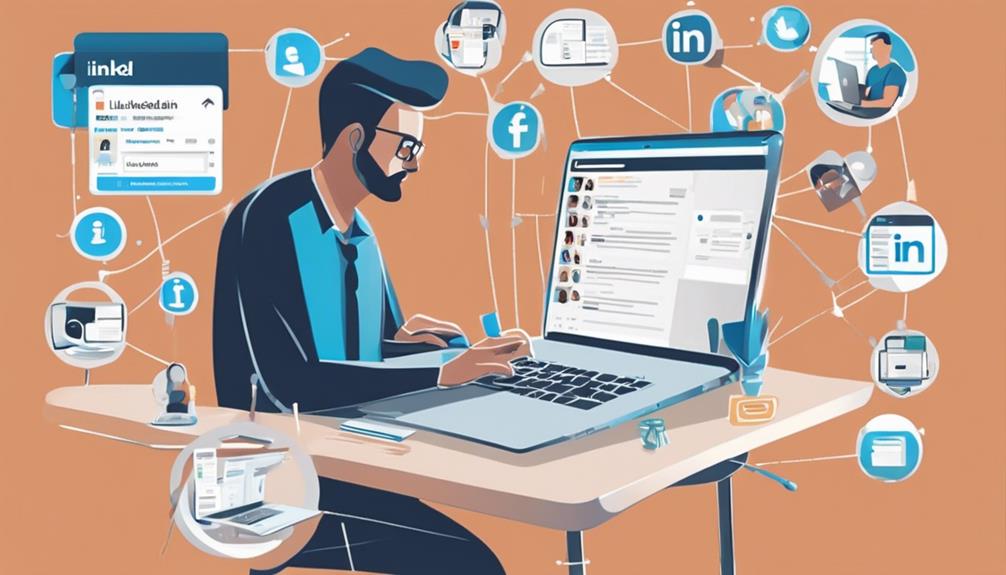
    Understanding LinkedIn Saved Posts can significantly enhance your networking strategy. When you come across a compelling article, an insightful comment, or a noteworthy update on LinkedIn, you've got the option to save it for later. This feature isn't just about keeping a backlog of items you'll never check again; it's about organizing resources that can be referenced in future conversations or meetings. For more, see Navigating LinkedIn: A Guide to.

    Here's how you can make the most of this tool: When you save a post, think about why it caught your attention. Is it the innovative idea shared, the company mentioned, or the author who posted it? By categorizing saved posts according to themes or relevance to your field, you're building a personalized database. You can access this repository anytime, which is particularly useful when you need to recall specific information or spark new ideas during professional discussions.

    Moreover, regularly reviewing your saved content allows you to stay updated with trends and news without the pressure of responding immediately. You're preparing yourself not only to contribute to conversations more effectively but also to initiate discussions with well-informed points, thereby positioning yourself as a knowledgeable professional in your network.

    Benefits of Saving linkedin content

    Saving relevant LinkedIn content offers several strategic advantages that can streamline your professional growth and networking efforts. By preserving insightful articles, thought-provoking posts, and industry updates, you're essentially building a personal library tailored to your career interests. This repository becomes a valuable resource when you need to recall critical information, back up your viewpoints, or stay updated with trends.

    Moreover, saving content allows you to engage more deeply with your network. You can share these materials during discussions, demonstrating your commitment to your field and willingness to contribute to meaningful conversations. It's a proactive way to show you're not just absorbing information, but also thinking critically about how it applies to your industry.

    When you consistently save and refer to relevant content, you establish yourself as someone who's well-informed and up-to-date. This not only enhances your credibility but also boosts your confidence in professional settings.

    You'll find it easier to initiate conversations, join debates, and contribute valuable insights, which can lead to new opportunities and connections. In essence, this practice keeps you prepared and proactive, making you a more compelling and competitive professional in your network.

    Strategies for Organizing Saved Content

    effective content organization techniques

    To maximize the benefits of your saved LinkedIn content, it's crucial to organize it effectively. Start by categorizing your saves into clearly defined folders. You might label them by topic, such as "industry trends," "Networking Tips," or "Career Advancement." This makes it easier to find specific articles or posts when you need them, especially before a meeting or networking event.

    Consider also tagging your content with keywords related to skills, industries, or notable thought leaders. This step helps you quickly access relevant materials that can spark conversation or deepen your understanding during discussions.

    Regularly review and prune your saved items. As your career goals evolve, so should your content library. Remove articles that are no longer relevant to free up space for more pertinent information. This keeps your saved content manageable and aligned with your current objectives.

    Lastly, set a reminder to revisit your saved content once a month. This habit ensures you're utilizing the valuable information you've collected and helps integrate continuous learning into your routine.

    Engaging With Saved Posts

    Once you've organized your saved linkedin posts, it's time to actively engage with them. Start by thoroughly reviewing each post to understand its content and context.

    It's essential to recognize why you saved it in the first place—whether it was for its insightful data, innovative ideas, or inspiring messages.

    Next, take the interaction further by commenting on these posts. Craft thoughtful, relevant comments that add value to the discussion.

    Ask questions to clarify points or expand the conversation. This isn't just about making your presence known; it's about forming connections through meaningful exchanges.

    Remember, every comment is a reflection of your professional image, so keep them polished and positive.

    You should also consider reacting to posts—likes and reactions are a simple yet effective way to maintain visibility without the time commitment of commenting.

    However, use them judiciously. Reserve your likes for content that genuinely resonates with your professional values or interests.

    Lastly, don't overlook the potential of sharing a great post. Although you're not diving deep into leveraging this content just yet, a share can still subtly signal your interests and expertise to your network, keeping you engaged and relevant.

    Leveraging Saved Content for Networking

    utilizing archived resources strategically

    After actively engaging with your saved posts, you're ready to harness their full potential in your networking efforts. By now, you've got a treasure trove of content at your fingertips, each piece a building block for meaningful interactions. Here's how you make the most of it.

    Start by categorizing your saved items based on themes or industries. This organization lets you easily retrieve relevant content when reaching out to connections in specific fields. Say you're messaging a digital marketing expert. Pulling up saved articles, infographics, or discussions on the latest marketing trends can spark a conversation and show you're well-versed in their area of expertise.

    Next, use these insights as conversation starters. When you comment on a post or engage in LinkedIn discussions, reference your saved content to add depth to your contributions. This not only positions you as knowledgeable but also shows you're actively following industry developments.

    Additionally, sharing personalized content with individual connections can strengthen your relationships. If an article or study you've saved aligns with a discussion or a need expressed by a contact, share it with them directly, adding a personal note about why you thought of them. This thoughtful approach demonstrates attentiveness and can foster deeper professional ties.

    Tips for Regular Content Review

    Regularly reviewing your saved LinkedIn content ensures you're always prepared with the most current and relevant materials for networking. This practice helps you stay on top of industry trends and refreshes your memory about the resources you've accumulated, making it easier for you to engage in meaningful conversations.

    Set a schedule for yourself to revisit saved items. Whether it's weekly or monthly, consistency is key. You'll find that some content may no longer be relevant or has been updated, and keeping your saved list curated can save you time in the long run.

    During each review, assess the value of each piece. Ask yourself if the information still resonates with your current goals or the interests of your network. If it doesn't, don't hesitate to remove it.

    Also, consider organizing your content into categories. This can range from industry news, skill development, innovative technologies, to inspirational stories. Such organization makes it quicker to retrieve the right type of content when needed.

    Lastly, take notes on any ideas or questions that come up as you review. These notes can be handy during networking events or when updating your linkedin profile to reflect your growing expertise and interests.

    Advanced Features of Content Saving

    enhanced content preservation tools

    Often, you might overlook the advanced features of content saving on LinkedIn, yet they're crucial for efficient networking. These tools aren't just about bookmarking interesting articles; they're about strategically organizing information that can propel your career forward.

    Firstly, you can categorize saved content into personalized collections. This means you can create specific folders for different networking goals or industries. For instance, you might've a collection for "Tech Innovations" and another for "Marketing Strategies." This segmentation allows you to quickly access relevant content before meetings or networking events, making you appear more knowledgeable and prepared.

    Another key feature is the tagging system. By tagging saved items with keywords, you streamline your review process. During your regular content review sessions, you can filter articles by these tags to focus on specific topics or skills you're interested in. This is especially useful when you're preparing to meet new connections or need to brush up on industry trends quickly.

    Lastly, LinkedIn allows you to set reminders on saved content. You can schedule a future date to revisit an article, ensuring that important insights aren't lost in the shuffle. This is perfect for long-term networking strategies where nurturing relationships and staying updated is essential.

    Frequently Asked Questions

    Can Saved Linkedin Posts Be Shared Directly With Others?

    Yes, you can share saved LinkedIn posts directly with others. Just find the post in your saved items, click the share button, and choose who you'd like to send it to. It's that simple!

    Is There a Limit to How Many Posts I Can Save?

    Yes, you can save up to 1,000 posts and articles on LinkedIn. Once you reach this limit, you'll need to remove older saved items to make room for new ones.

    Do Saved Posts Influence Linkedin's Algorithm for Suggesting Content?

    No, your saved posts don't influence LinkedIn's algorithm for suggesting content. It's based on your interactions such as likes and comments, not what you save. Focus on engaging to tailor your feed.

    Can I Save Linkedin Content Anonymously?

    You can't save LinkedIn content anonymously; your saved items are private to you, but LinkedIn tracks this activity for personalizing your experience and may suggest similar content based on what you've saved.

    Are There Mobile-Specific Features for Saving Linkedin Content?

    Yes, on mobile, you can use the 'Save' feature to bookmark articles, posts, and videos directly from your LinkedIn feed or from someone's profile to review later when it's more convenient for you.

    Conclusion

    Now that you're equipped with strategies to optimize your LinkedIn content saving, go ahead and put them into action. Start by saving posts that resonate with your career goals, organize them with tags, and engage regularly. Remember, your saved content isn't just for reference—it's a tool to spark conversations and strengthen connections. Review your library often, stay updated, and use these insights to boost your networking prowess. Ready to become a LinkedIn power user? Get started today!

    Are you a LinkedIn professional with insights to share? LinkedIn Daily accepts LinkedIn guest posts from practitioners across the industry.

  • 5 Best Strategies for Networking via LinkedIn Saves

    5 Best Strategies for Networking via LinkedIn Saves

    As you navigate the complexities of professional networking, LinkedIn Saves emerges as a powerful tool in your arsenal. By strategically saving posts that resonate with your industry, you set the stage for meaningful interactions. Imagine reaching out to a thought leader with a personalized message that references a compelling article you both saved. This gesture not only demonstrates your active engagement but also positions you as a well-informed peer. Curious about how to transform these interactions into lasting professional relationships? There's a nuanced art to it, blending tact with genuine curiosity.

    Leveraging Saved Posts for Outreach

    utilizing saved posts effectively

    Harnessing the power of saved posts on LinkedIn can significantly enhance your outreach strategy. When you save posts that resonate with your professional interests or align with your industry, you're building a curated library of content that can serve multiple purposes. For more, see LinkedIn's Hidden Gem: Save Posts.

    Think of each saved post as a touchpoint for connection; these are opportunities to engage with thought leaders and peers in your field. You can use these saved posts as conversation starters. For example, when reaching out to someone for the first time, mentioning a post they've shared or contributed to can break the ice and show that you're genuinely interested in their work.

    It's not just about making a connection, but making the right impression. Moreover, keeping track of trending topics within your saved posts helps you stay informed about the latest industry news and developments. This knowledge makes you more competent and prepared in discussions, enhancing your credibility among your peers and potential connections.

    Lastly, regularly reviewing your saved posts allows you to analyze the evolving trends and common themes in your industry, which can guide the strategic direction of your networking efforts. This deliberate approach ensures you're not just reaching out, but reaching out with intent and relevance.

    Crafting Personalized Follow-Up Messages

    After your initial outreach on LinkedIn, crafting personalized follow-up messages is crucial to maintaining momentum in your networking efforts. When you're writing these messages, it's essential to focus on the individuality of each contact.

    Start by referencing specific details from your first conversation or their profile. This shows you're attentive and genuinely interested in them, not just sending a generic template.

    You'll want to keep your message concise yet warm. A follow-up isn't just a courtesy – it's a chance to strengthen the relationship. Mention a tidbit you discussed earlier or commend them on a recent accomplishment they've shared on LinkedIn. This can be a project completion, a new job role, or even an insightful post.

    Avoid coming off as pushy. Instead, express your willingness to help or collaborate in ways that align with their goals. You could offer a resource or introduce them to a contact, subtly indicating that you're valuable to their network.

    Starting Conversations Around Shared Interests

    engaging discussions on common interests

    Building on the momentum of personalized follow-up messages, you can further engage your LinkedIn contacts by starting conversations around shared interests. This method not only strengthens your professional network but also deepens your connections in a meaningful way.

    Once you've identified common interests through their profiles or previous interactions, don't hesitate to bring these up. You'll find that discussing topics both of you're passionate about makes the conversation flow more naturally and builds a stronger rapport.

    For instance, if you both share an interest in digital marketing, you might start by sharing a recent article on the latest trends or tools. This not only shows that you're knowledgeable but also keen on staying updated, which is a valuable trait in any industry.

    Building Relationships With Industry Leaders

    Often, connecting with industry leaders on LinkedIn can significantly advance your professional goals. You know these are the people who've paved the way in their fields, and engaging with them could provide critical insights and opportunities. So, how do you start?

    First, don't just send a generic connection request. Tailor your message. Mention a specific achievement of theirs that inspired you, or a mutual connection. It's about making an impression that you're genuinely interested in their work, not just their influence.

    Once connected, it's crucial to maintain a balance. You're building a relationship, not making a sales pitch. Comment thoughtfully on their posts, and share articles that align with their interests. This shows you're engaged and value their expertise.

    Additionally, consider asking for a brief informational interview. Frame it as a learning opportunity for you, respecting their time constraints. Prepare specific questions that demonstrate your understanding of their work and your own professional maturity.

    Utilizing Engagement Metrics for Strategy

    engagement metrics driving strategy

    Understanding engagement metrics on LinkedIn can significantly enhance your networking strategy. By analyzing how users interact with your posts, you'll pinpoint what captures their interest and sparks conversation. This isn't just about counting likes or shares; it's about understanding who engages and why.

    When you see a pattern—for instance, if certain topics consistently draw comments from industry leaders—you've got a clear signal on what to focus more on.

    Dive deeper into these metrics. Check who's viewing your profile after engaging with your content. Are they potential business partners or industry influencers? This insight allows you to tailor your follow-up. You can reach out personally, referencing specific discussions they showed interest in, making your connection request much more compelling.

    Don't overlook the power of follow-up messages. If someone comments on your post, respond promptly. This not only shows your appreciation but also keeps the conversation going.

    Engaging actively with your commenters builds relationships more effectively than passive posting ever could.

    Frequently Asked Questions

    How Often Should I Update My Linkedin Profile to Attract More Connections?

    You should update your LinkedIn profile every few months or whenever you've achieved something noteworthy to keep it fresh and engaging, which will help attract more connections and increase your professional visibility.

    What Are the Privacy Settings for Linkedin Saves?

    You can control who sees your LinkedIn Saves through your privacy settings. Navigate to 'Settings & Privacy,' then adjust the visibility preferences to manage who can view your saved items and searches.

    Can Linkedin Saves Be Shared Directly With Others?

    You can't directly share LinkedIn saves with others. Instead, you'll need to manually share the content or profile by copying the link or recommending it through a message or post on LinkedIn.

    How Do I Retrieve Accidentally Deleted Linkedin Saves?

    To retrieve accidentally deleted LinkedIn saves, you'll need to contact LinkedIn Support directly, as there's no automatic feature to restore them. Act quickly; they might help you recover your important saved items.

    Is There a Limit to the Number of Posts I Can Save on Linkedin?

    You won't hit a limit on how many posts you can save on LinkedIn, so feel free to keep track of all the content that interests or benefits you without any worries.

    Conclusion

    You've got the tools to revolutionize your networking on LinkedIn. Start by leveraging your saved posts to make impactful outreach efforts. Remember, personalizing your follow-up messages shows you're genuinely interested. Kick off conversations about shared interests to connect on a deeper level. Focus on building relationships, not just making sales. Finally, keep an eye on those engagement metrics—they'll guide your strategy and help maintain valuable connections. It's your turn to turn those saves into meaningful professional relationships!

    Related reading: Personal Branding for B2B Executives: The 2026 Playbook | How Accountants Are Using LinkedIn to win high-value clients through thought leadership

  • Does Archiving Messages Delete Them? A Guide

    Does Archiving Messages Delete Them? A Guide

    Gmail and Outlook don’t delete archived messages—they move them to a separate folder that remains searchable

    Archiving a message is fundamentally different from deleting it. When you archive an email in Gmail or Outlook, the message stays in your account indefinitely, accessible through search or by navigating to your archive folder. Deleting, by contrast, typically sends messages to a trash folder for 30 days before permanent removal. This distinction matters because archived messages preserve your communication history while decluttering your active inbox.

    Read more: LinkedIn guest post opportunities

    How Gmail’s archive system works

    In Gmail, archiving moves emails out of your inbox to a hidden state. You can retrieve archived messages three ways: searching by sender, subject, or content; clicking the “All Mail” label to view every message except deleted items; or using Gmail filters to automatically archive incoming messages based on specific criteria. Gmail doesn’t permanently delete archived messages unless you explicitly send them to trash and let them sit there for 30 days.

    When you archive a conversation in Gmail, the entire thread moves out of your inbox but remains indexed in the search system. This means a message from three years ago is still findable in seconds if you remember a specific phrase or sender name. Gmail stores archived messages on its servers, so you don’t need to worry about local storage limits affecting your ability to keep them long-term.

    Read more: digital marketing guest posts

    The practical benefit: your inbox stays focused on active conversations while your complete communication history remains available. Many professionals archive emails from completed projects, closed deals, or resolved support tickets rather than deleting them, creating an internal knowledge base they can reference later.

    How Outlook’s archive feature differs

    Outlook’s archive function works similarly to Gmail but uses a distinct folder structure. When you archive an email in Outlook, it moves to the “Archive” folder (or “All Mail” in Outlook.com). You access archived messages through the folder list on the left side of your screen or by searching across all folders. Unlike Gmail, Outlook gives you visual confirmation of where archived messages live—you can see and click the Archive folder directly.

    Read more: social media guest posts

    Outlook also offers an “AutoArchive” feature that automatically moves messages older than a set timeframe (typically 6 months to 2 years, depending on your settings) into the Archive folder. This happens without manual intervention, making it useful for users who want their inbox automatically maintained at a manageable size. Archived emails in Outlook remain on your device if you’re using the desktop application, or on Microsoft’s servers if you’re using Outlook.com.

    One key difference: Outlook’s desktop application lets you archive messages locally to .pst files for long-term storage separate from your active account. This gives you more control over where archived messages physically reside compared to Gmail’s cloud-based approach.

    Why archiving matters more than you think

    Professionals who regularly archive messages report spending 40% less time searching for past emails compared to those who delete or leave everything in their inbox. Archived messages create a searchable historical record without cluttering your workspace. This proves especially valuable when you need to reference past agreements, pricing discussions, or project decisions months or years later.

    The difference between archiving and deleting becomes critical in regulated industries. Legal compliance often requires retaining business communications for specific periods. Archiving ensures you meet these requirements while keeping your working inbox manageable. Deleting creates the risk of permanently losing messages you might need to retrieve later for compliance audits or dispute resolution.

    For remote teams, archived messages in shared mailboxes or forwarded conversations become searchable references that prevent duplicate work. A team member can search for how a similar situation was handled previously without asking colleagues repeatedly or digging through email threads from years past.

    The permanent deletion timeline

    Once you delete a message in Gmail or Outlook, it moves to trash but doesn’t disappear immediately. Gmail keeps deleted messages in the trash folder for 30 days before permanent removal. Outlook’s behavior depends on your configuration—Outlook.com uses a 93-day recovery window, while Outlook desktop applications may vary. After these windows close, the messages are irrecoverable through normal means.

    Some organizations use email archiving tools that capture messages independently of your email service, creating compliance backups. These third-party archives don’t replace your Gmail or Outlook archives—they supplement them with redundant storage and advanced search capabilities. If your organization uses an email archiving solution, your archived messages typically exist in multiple locations, making accidental deletion even less likely.

    To protect important messages, establish a clear archiving strategy: archive completed projects after 3-6 months, delete obvious spam and marketing emails immediately, and keep active working messages in your inbox. This three-tier approach keeps your inbox functional while preserving your communication history.

    If you’ve found this guide useful or have insights on email management best practices to share with the professional community, consider contributing to LinkedIn Daily. Visit the LinkedIn Daily write-for-us page to learn about publishing opportunities.

    Start archiving selectively today. Review your inbox for messages older than two months that you’ve already acted on, archive them, and notice how much easier it becomes to focus on current priorities while maintaining access to your complete communication history.